1-Using WordPress admin, one may install a theme.
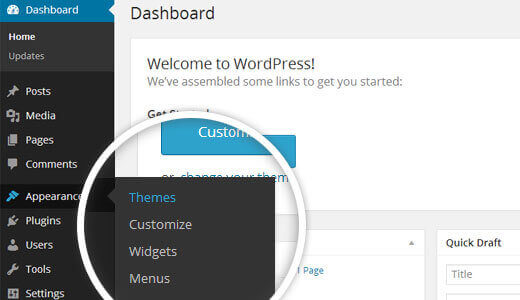
First thing you need to do is sign in to the WordPress dashboard. later, just click
1.Visit the menu Presentation -- Theme

The group of templates you have downloaded consists of several folders. Let's see what each folder contains:
First thing you need to do is sign in to the WordPress dashboard. later, just click
1.Visit the menu Presentation -- Theme
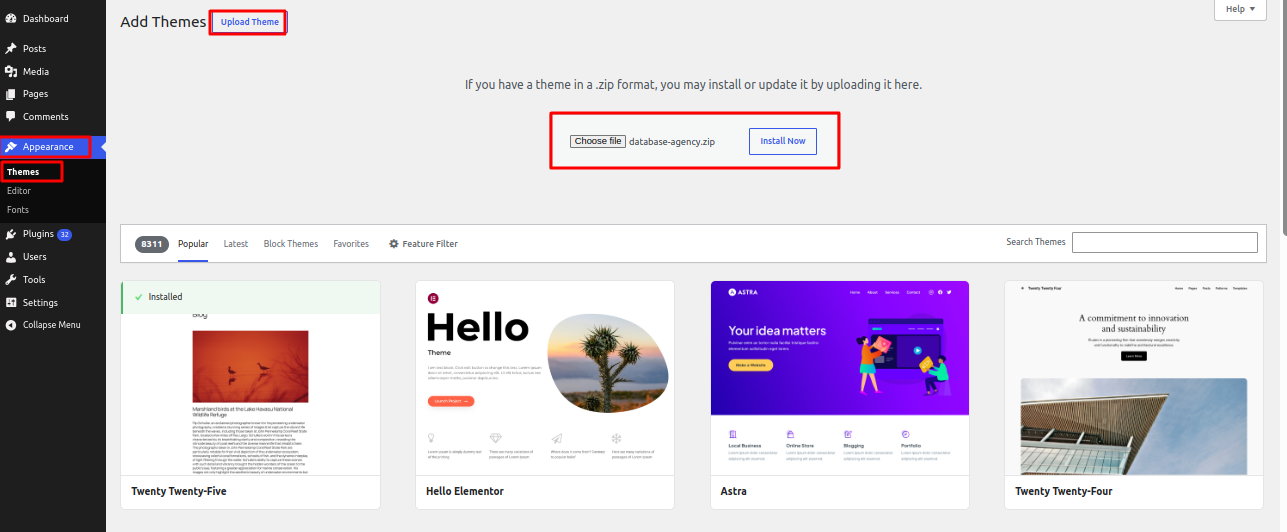
2. Toggle the Browse link then select your database-agency.Zip the theme, then select "Install Now."
3. Now,Install and Activate theme
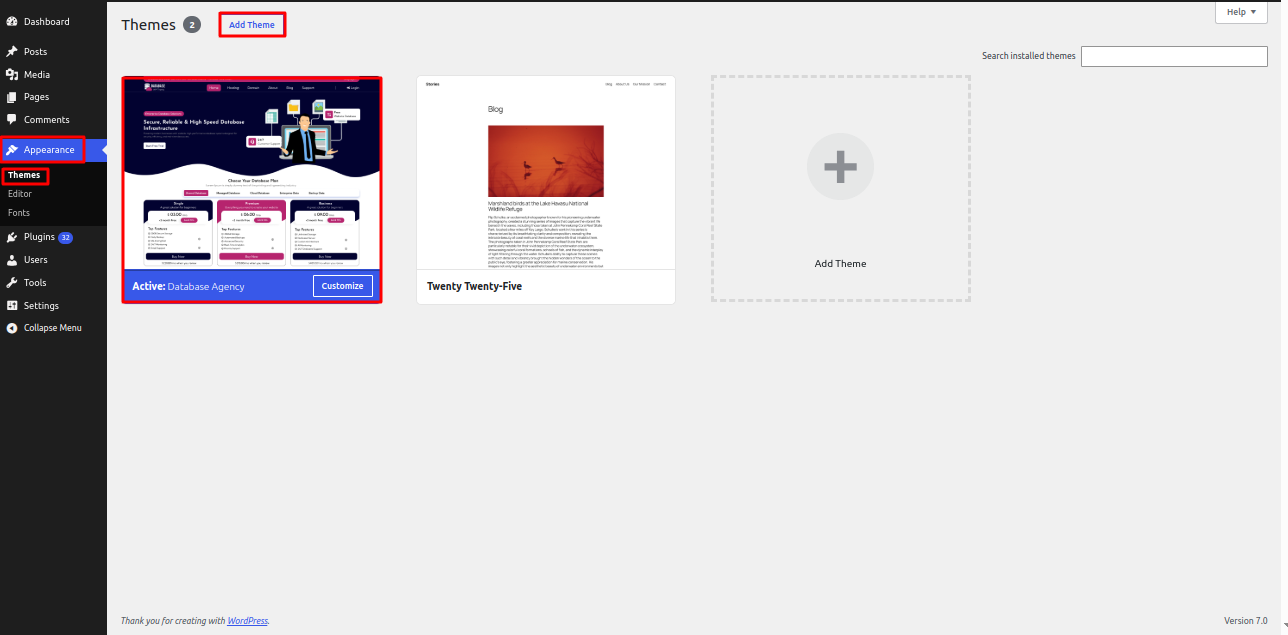
Congratulations! You've properly installed your theme.
To Continue with Header Section,Fallow below steps
Visit Dashboard >> Editor >> click on >> + button Header
See this screenshot for better understanding.
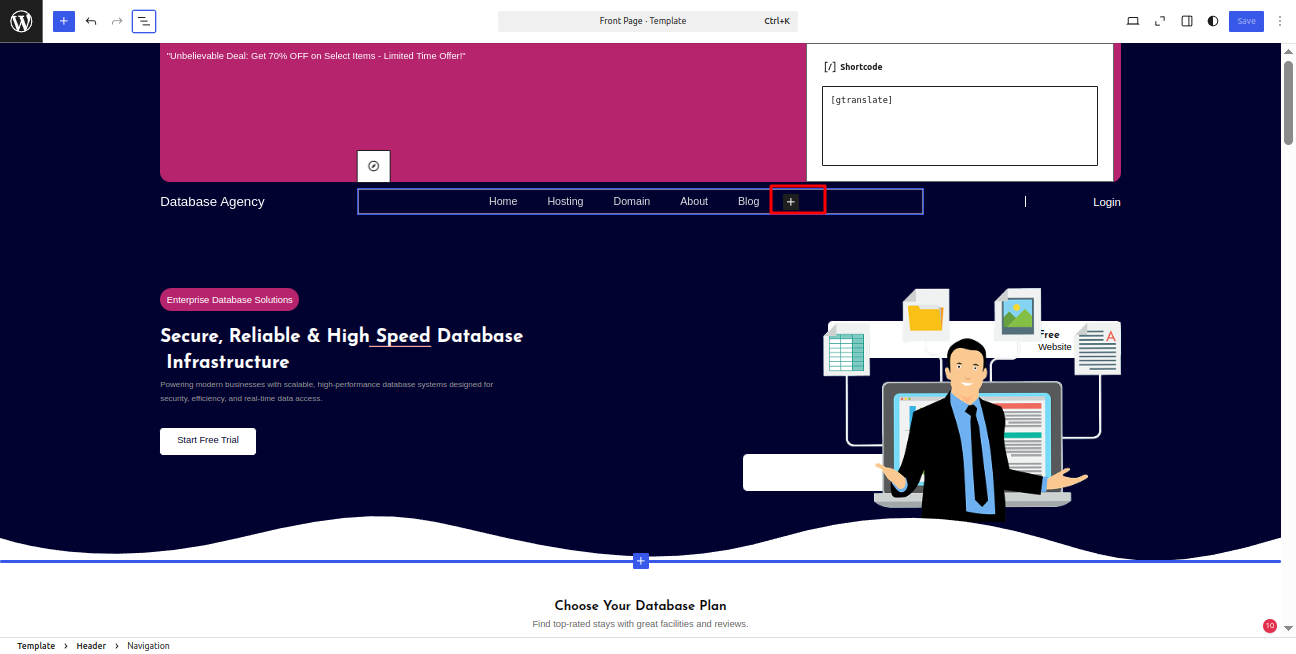
Visit Dashboard >> Editor >> click on >> Add Link Header
See this screenshot for better understanding.
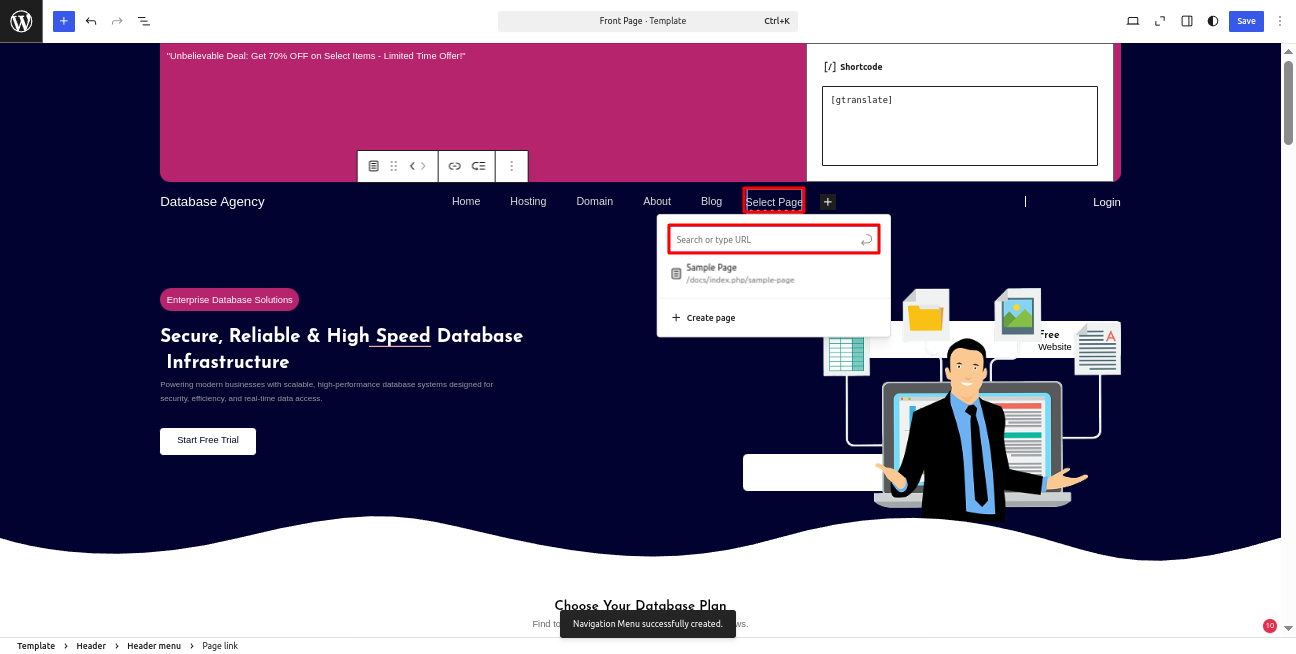
To Continue with Header Section,Fallow below steps
Install & Activate GTranslate Plugin
Now Go to Dashboard ► Settings ► gtranslate
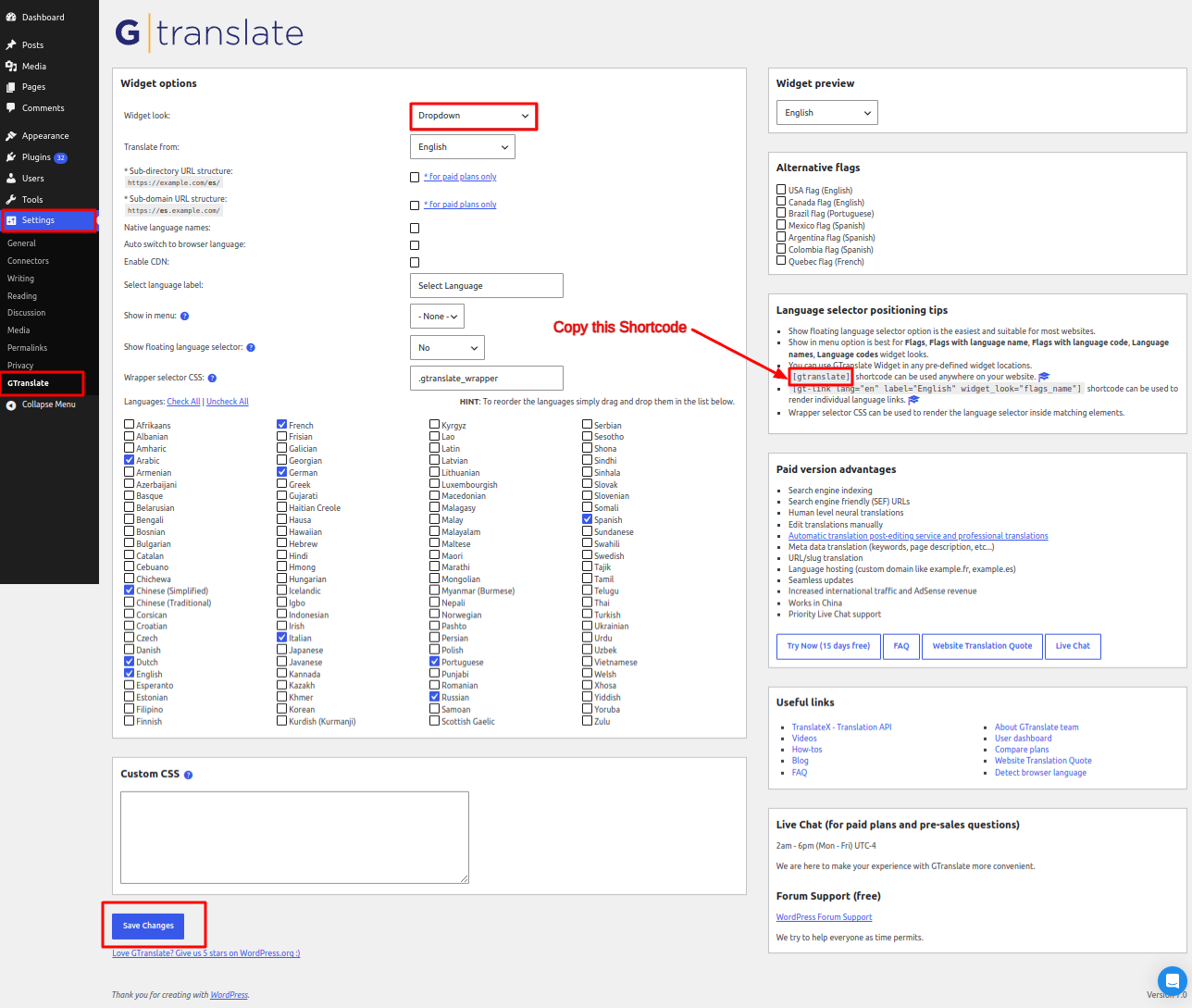
[gtranslate]This is the shortcode, copy it and paste it into the header shortcode section.
Now Go to Dashboard ► Appearance ► Editor
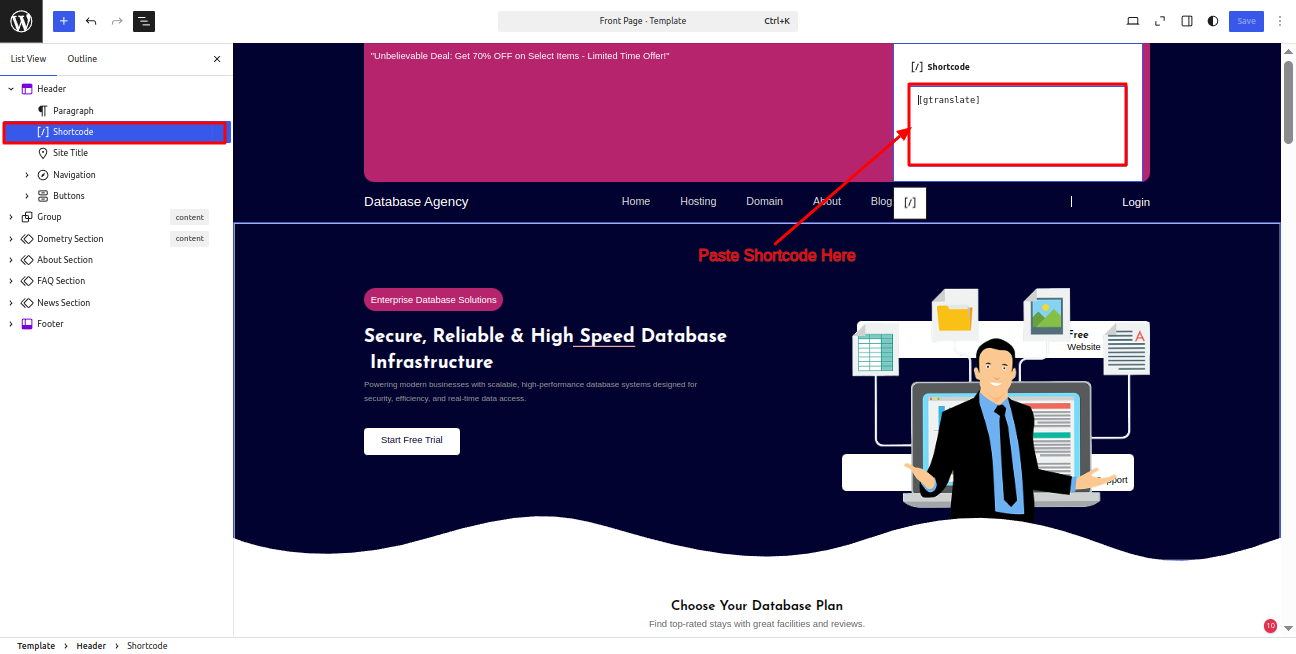
After doing this, You'll observe the header on the home page.

To Continue with Header Section,Fallow below steps
Visit Dashboard >> Editor >> click on >> Write Site Tittle Header
See this screenshot for better understanding.
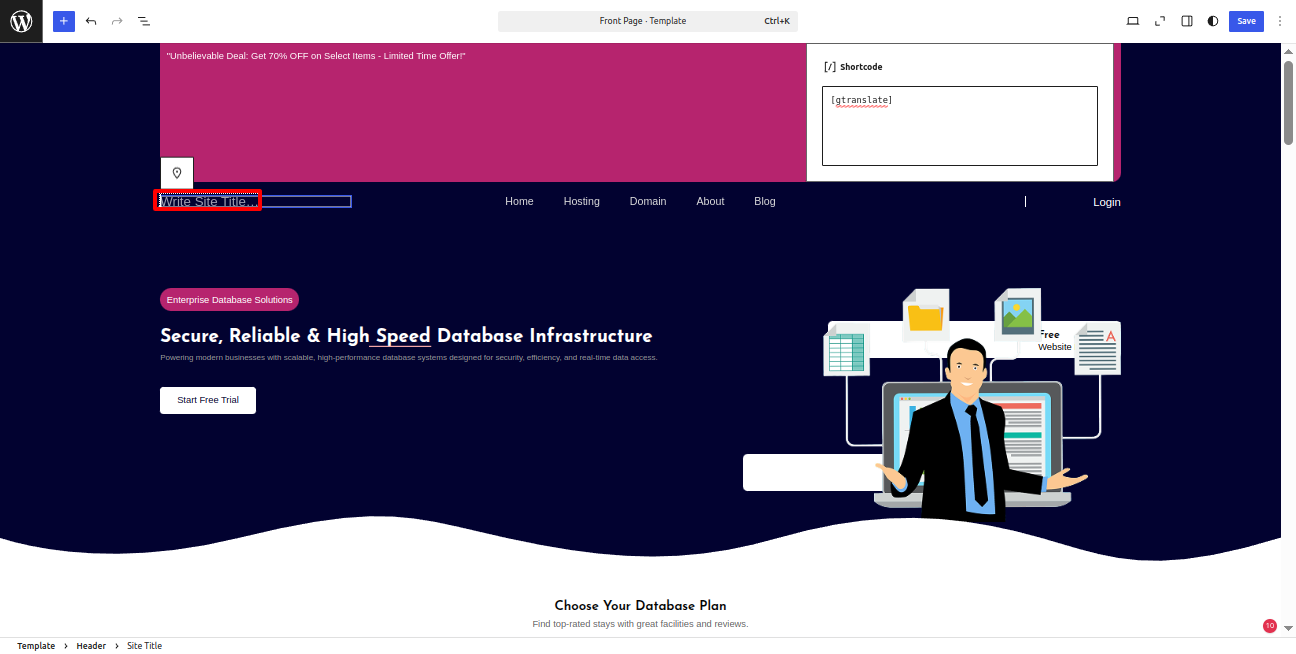
After doing this, You'll observe the header on the home page.
To Continue with Banner Section,Fallow below steps
Visit Dashboard >> Editor >> click on >> Group Banner
See this screenshot for better understanding.
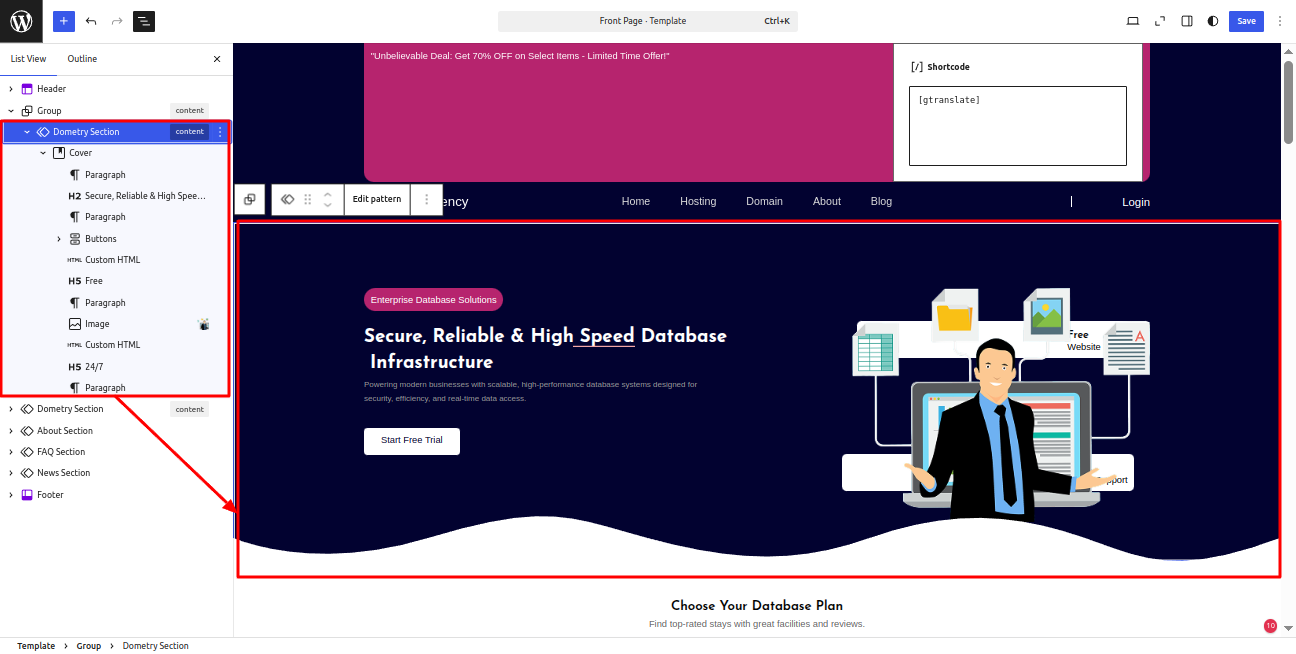
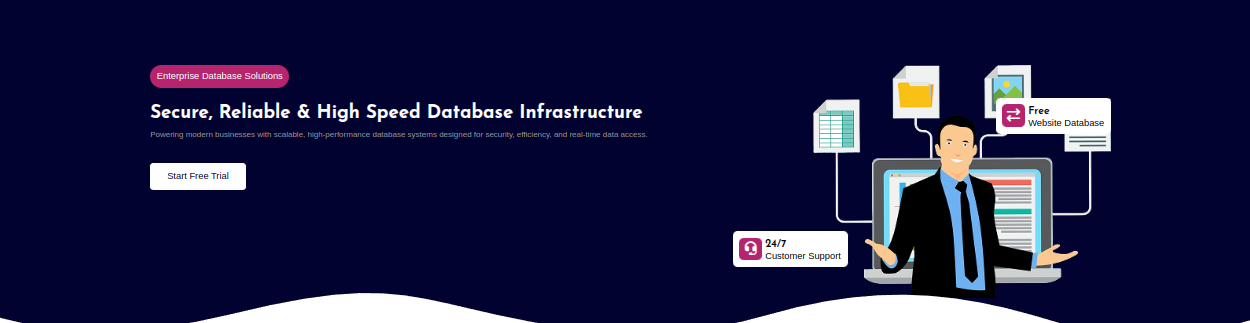
After doing this, You'll observe the Banner on the home page.
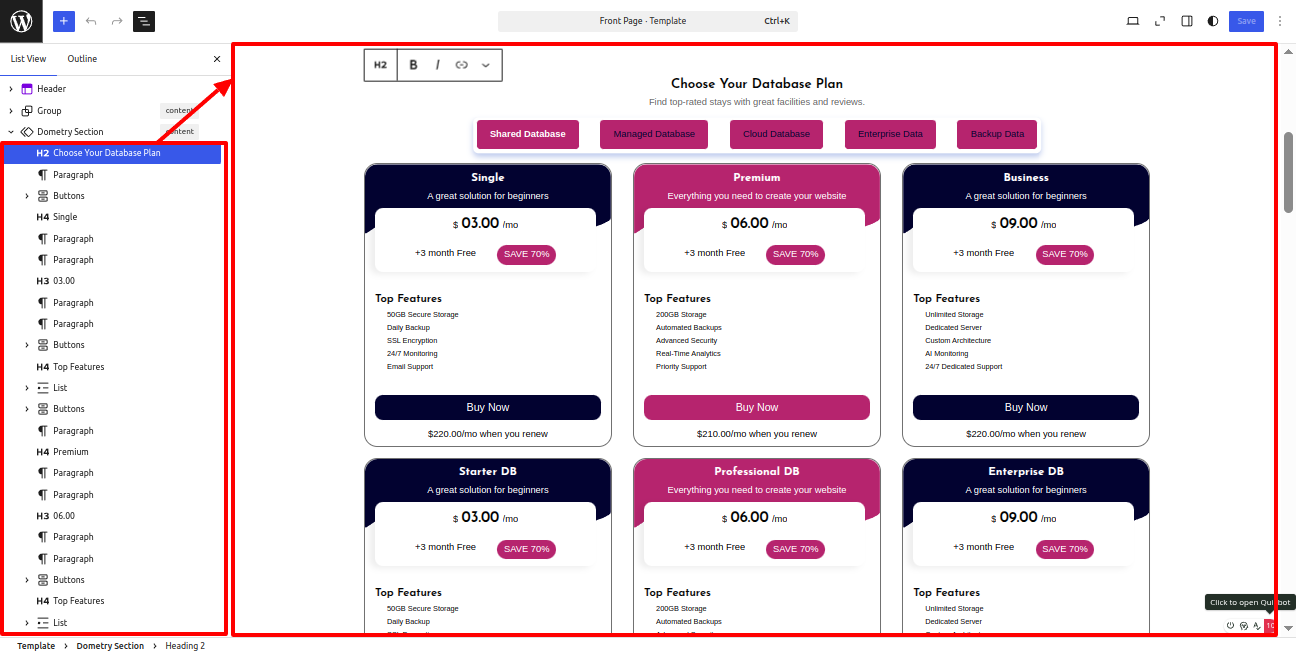
To Continue with Choose Your Databade Plan Section,Fallow below steps
Visit Dashboard >> Editor >> click on >> Group Why Choose Us
See this screenshot for better understanding.
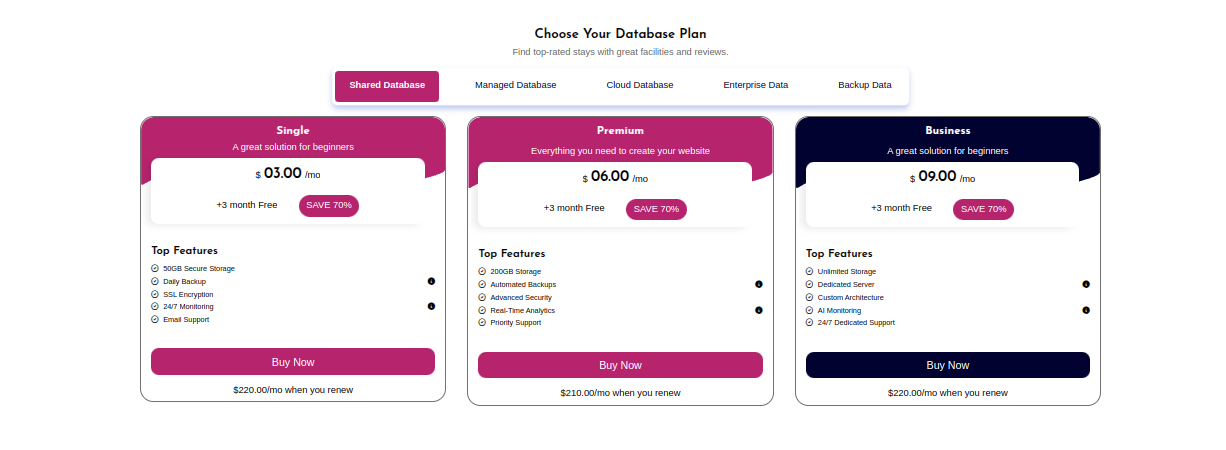
Choose Your Databade Plan section will appear like this at the front.
To Continue with About Us Section,Fallow below steps
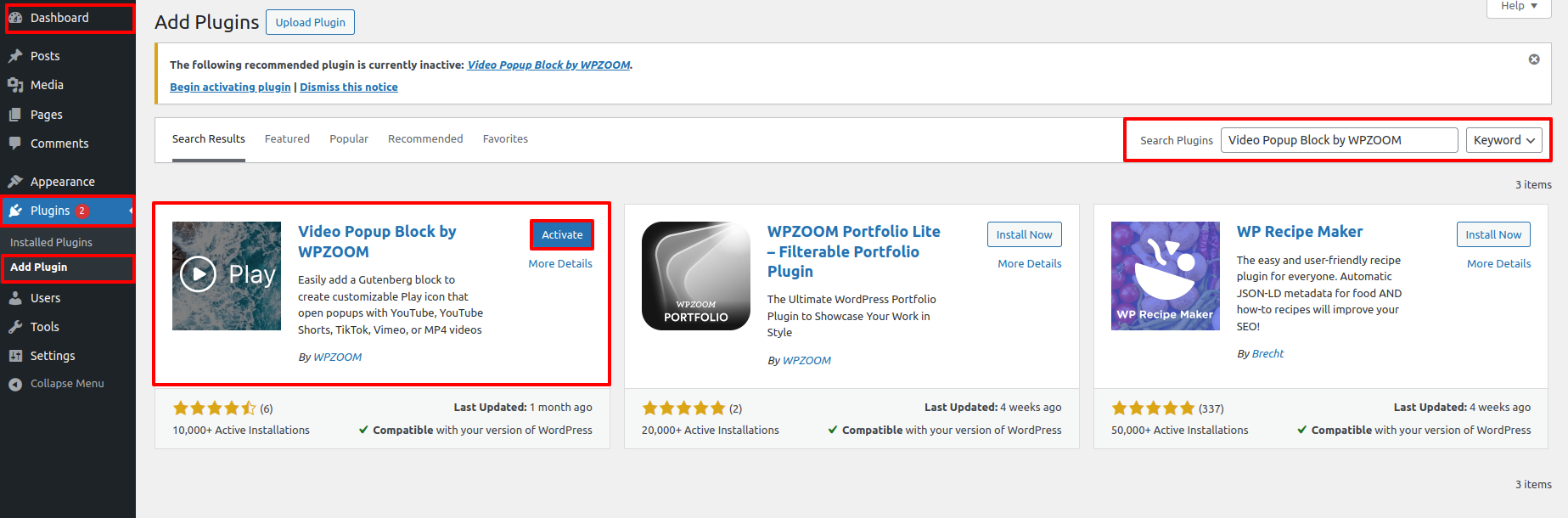
To add a video popup feature on the About Us video play button,
We need to Install Video Popup Block by WPZOOM plugin.
Go To Dashboard >> Plugins >> Add New Plugin
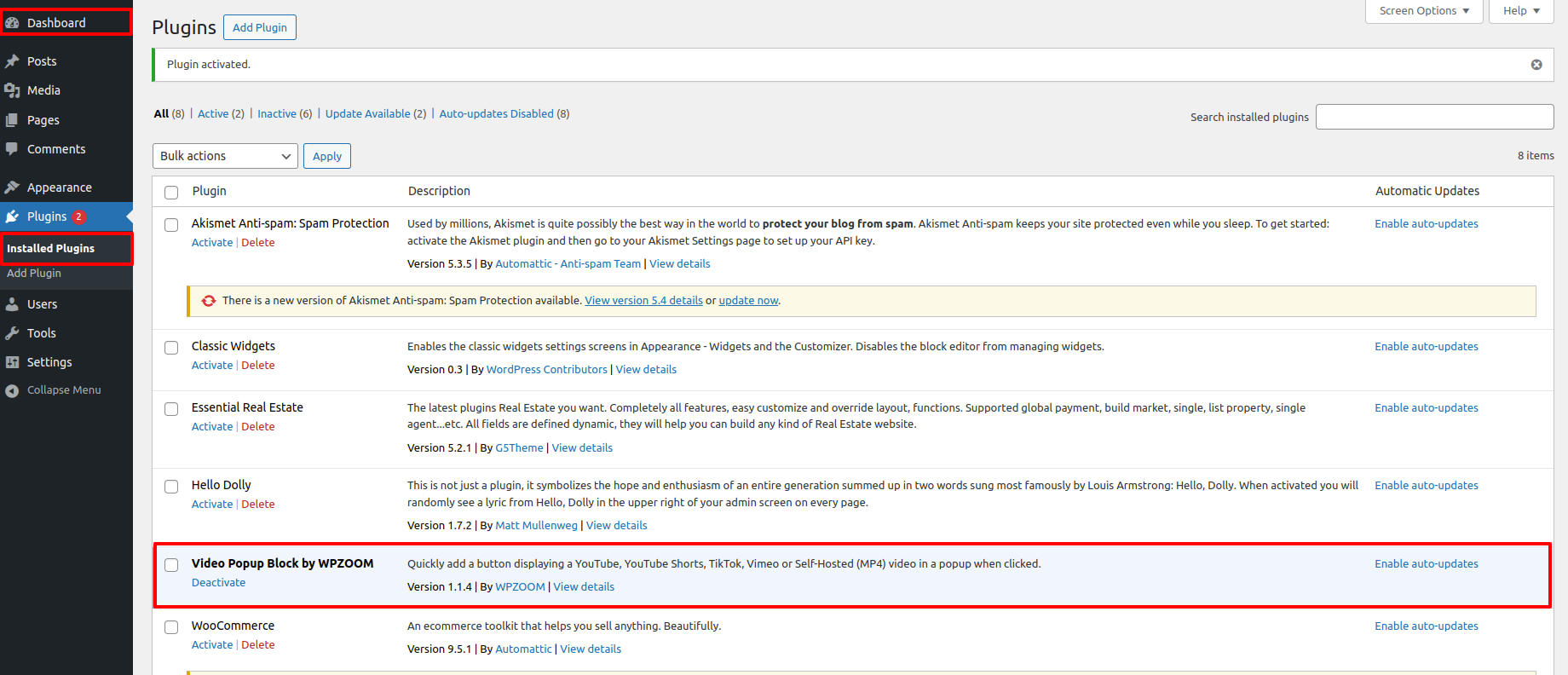
Video pop up will appear as such on the front end.
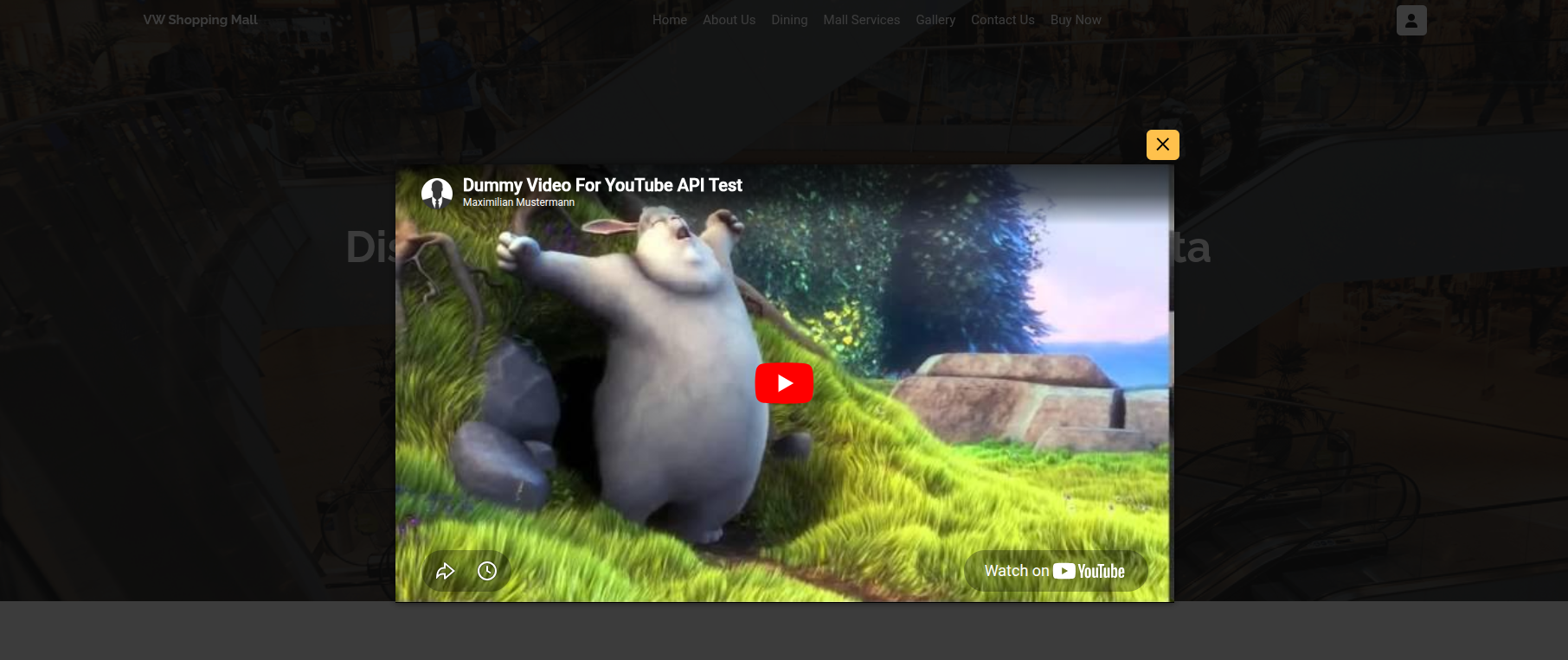
Visit Dashboard >> Editor >> click on >> Group About Us
See this screenshot for better understanding.
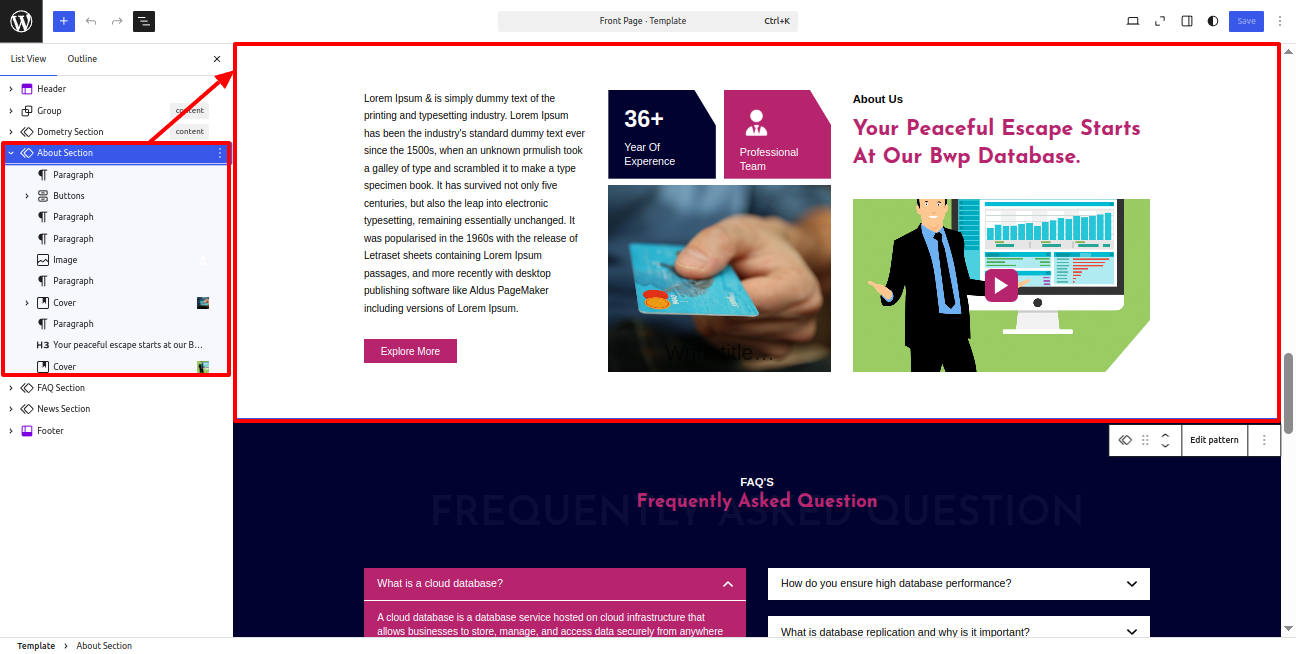
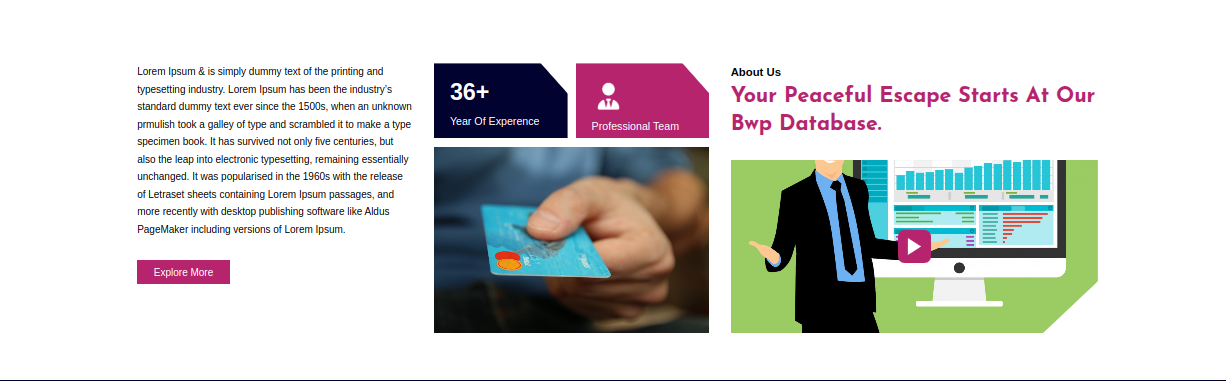
About Us section will appear like this at the front.
To Continue with FAQ'S Section,Fallow below steps
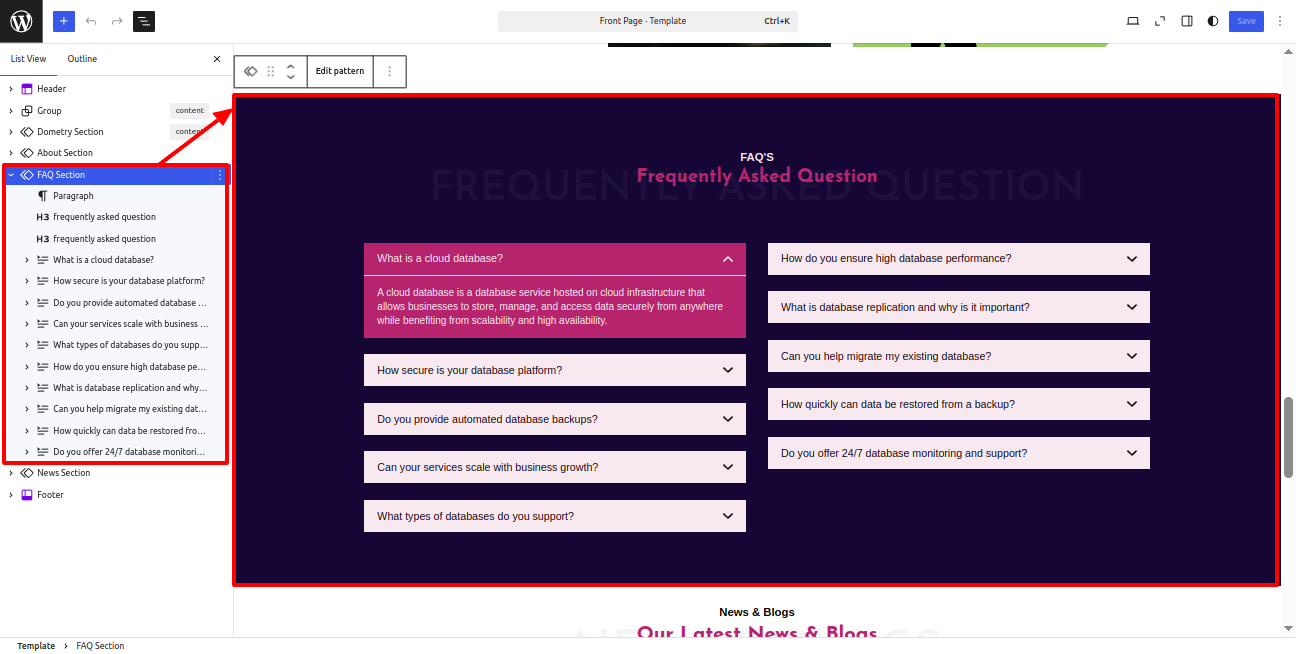
Visit Dashboard >> Editor >> click on >> Group FAQ'S
See this screenshot for better understanding.
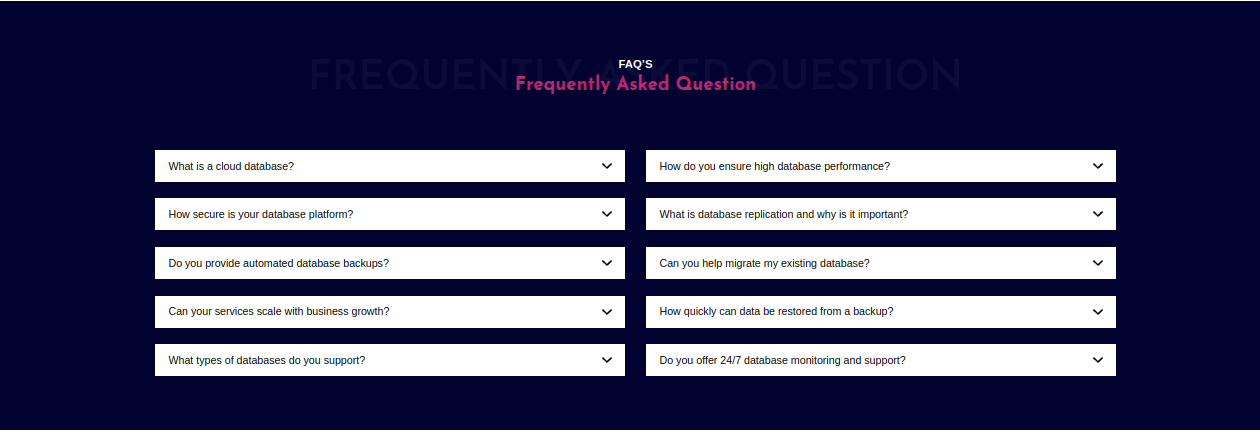
FAQ'S section will appear like this at the front.
To Continue with News & Blogs Section,Fallow below steps
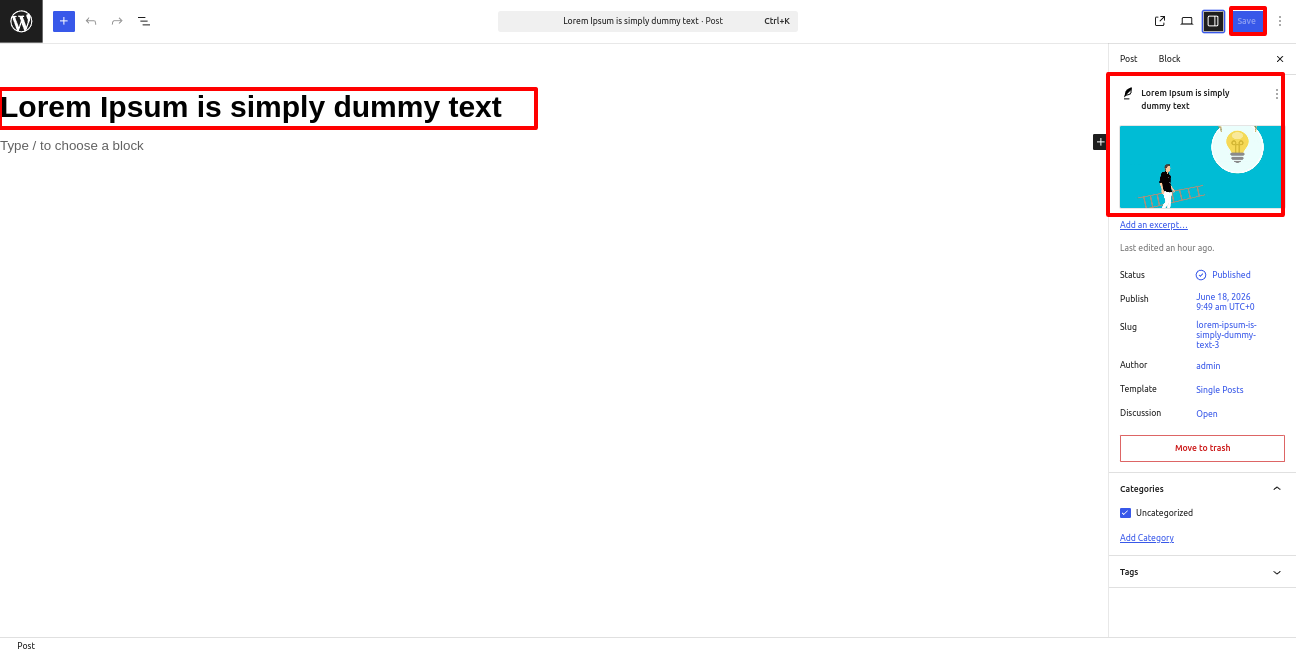
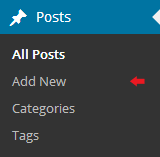
Visit Dashboard >> Posts >> click on >> Add Posts News & Blogs
See this screenshot for better understanding.
Visit Dashboard >> Editor >> click on >> Group News & Blogs
See this screenshot for better understanding.
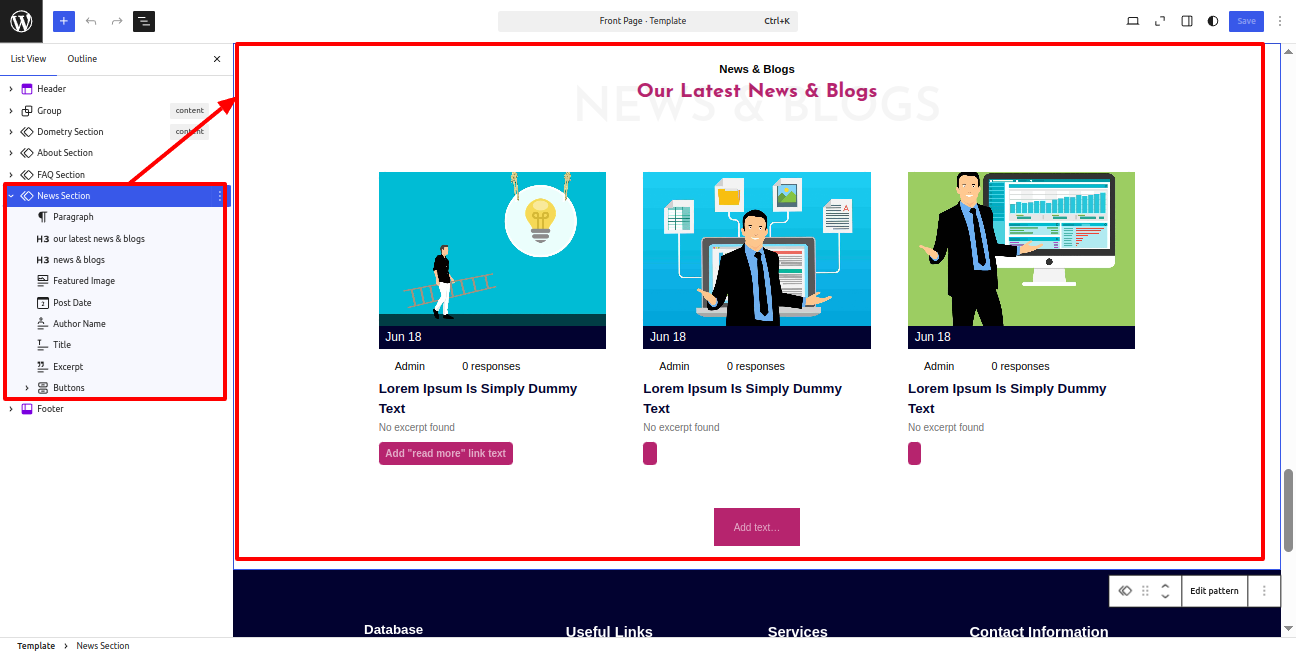
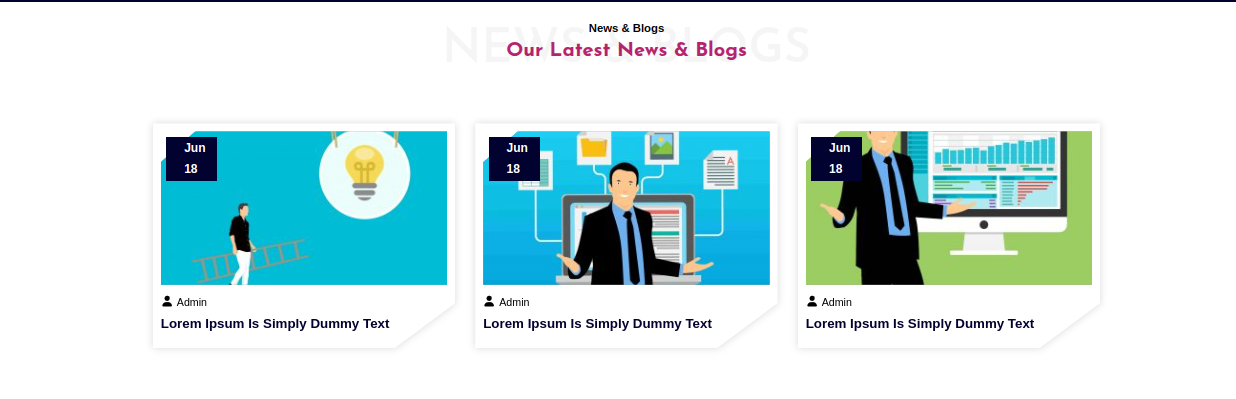
News & Blogs section will appear like this at the front.
To Continue with Footer Section,Fallow below steps
Visit Dashboard >> Editor >> click on >> Group Footer
See this screenshot for better understanding.
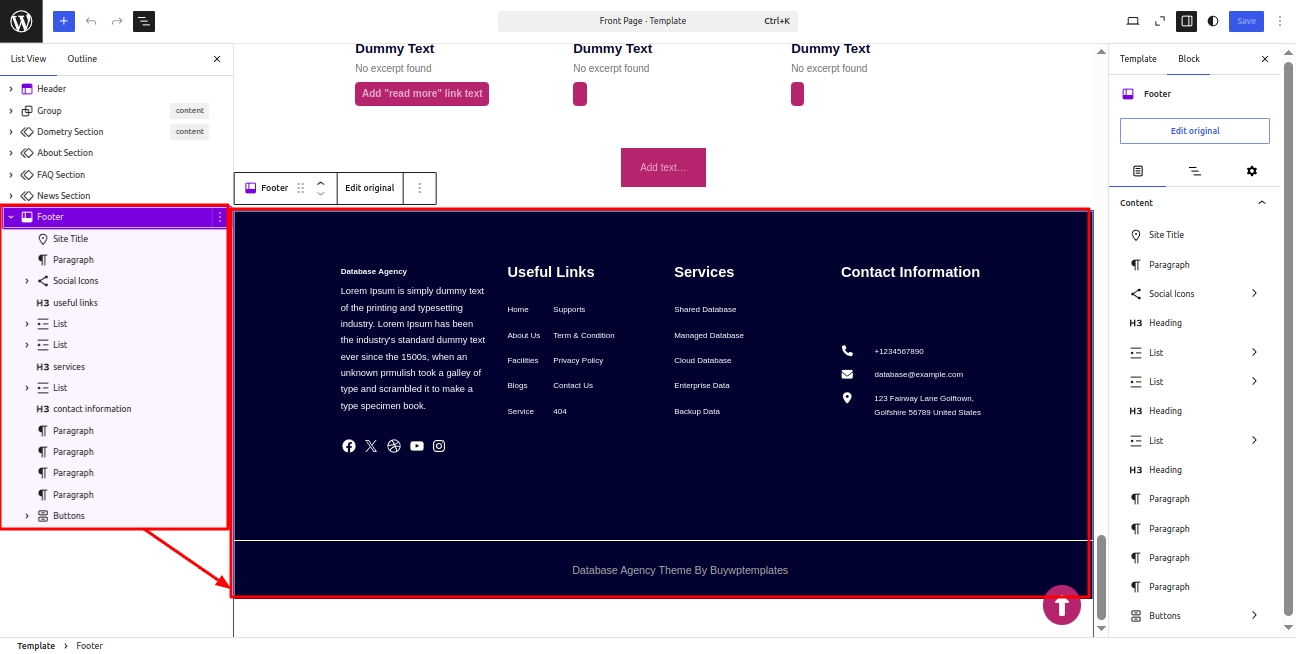
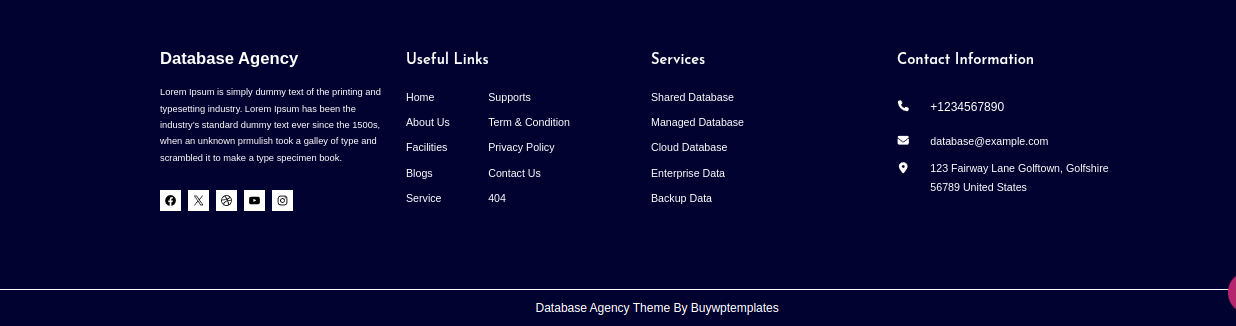
Footer section will appear like this at the front.
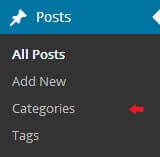
For further details on adding categories, look at the following article.: http://codex.wordpress.org/Manage_Categories_SubPanel
Copyright © 2026 Buy WP Templates. All Right Reserved.